Make a list of the changes before editing
Write down each item, its current price, and its approved replacement. This gives you a reference that is independent of the edited image. Include currency symbols and decimal places so that a price such as ‘$5’ is not accidentally entered as ‘$5.00’ when your menu uses whole numbers.
Use an original digital export whenever possible. A photo of a printed menu can introduce perspective, shadows, and glare. The editor can work with photos, but clear, flat text is easier to select and review.
Select a whole price rather than one digit
Upload the PNG, JPG, or WebP file and scan its text. If the scan selects an entire item row, use the drawing tool to mark only the intended price. Check the original text field before writing the replacement.
Select the currency symbol and complete number together. Replacing just the ‘4’ in ‘$4.50’ leaves AI with a tiny fragment and can make consistent spacing harder. Keep the dish name, dotted leader, and neighbouring prices outside the box when they do not need to change.
Keep the existing typographic pattern
Choose Match original and enter the full new price. Follow the existing currency style, decimal separator, and number of decimal places. For menus that align prices to the right, inspect the right edge of the replacement as well as the distance from the item name.
A longer number can take up more room. If ‘$9.50’ becomes ‘$12.00’, review whether the new text still fits its column. Matching the visible font is approximate, and even an apparently simple number change can alter spacing or the nearby background.
Update the next item from the latest result
Generate the first change and compare it with your source image. Once it looks correct, choose Edit again to continue from that result. Rescan or draw the next price region, then enter the next change from your checklist.
Each AI edit uses credits at the selected output resolution. A scan uses 1 credit. Review after every change so that a problem in an earlier result does not become the starting point for several more edits. For a large seasonal revision, editing the source menu may be a more practical workflow.
Run a final item-by-item check
Read the entire edited menu against the approved price list. Check decimal points, currency symbols, item names, and any smaller notes near the edited areas. Ask a second person to verify the prices if the menu is going directly to customers.
Choose PNG for lossless output or JPEG for a smaller file before generating. Open the downloaded result at the size people will actually read. Replace old menu copies in each place you publish them so that your website, social posts, and display image use the same approved version.
Try this exact edit on the practice image
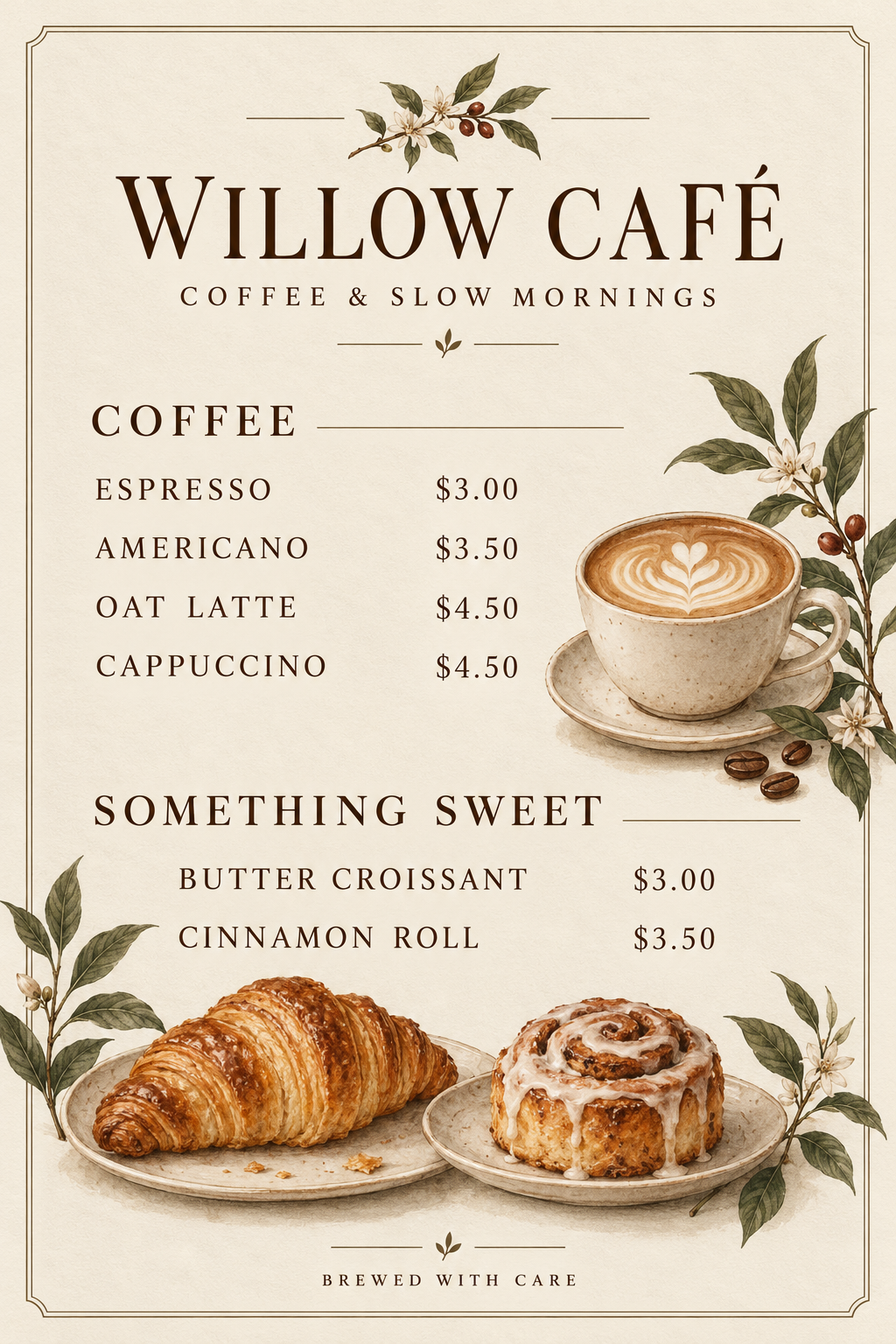
Download the original above, open the editor, and use these values. Each guide has its own source image, so you can practise this change independently.
- Original text
- $4.50
- Replace with
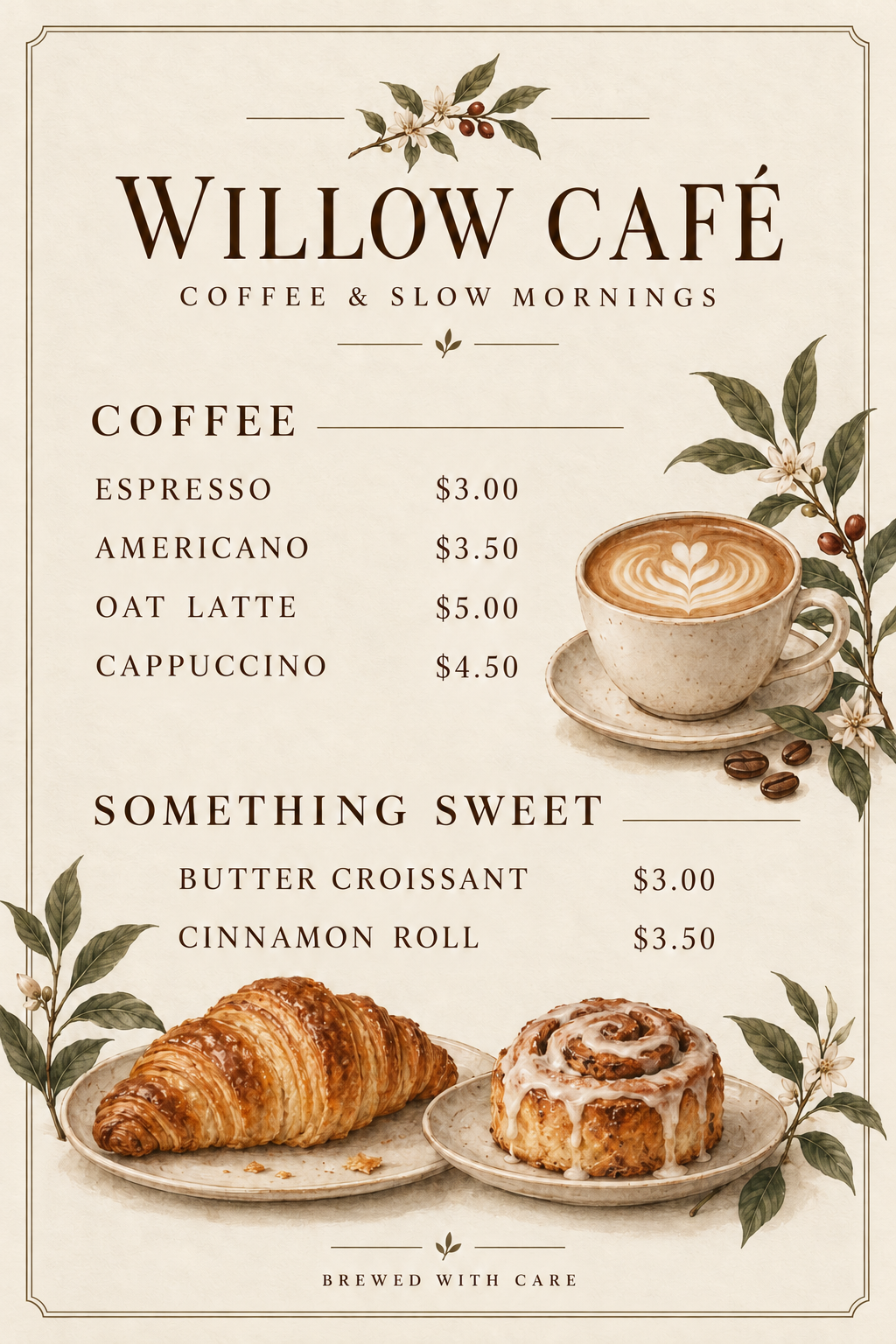
- $5.00
- Font
- Match original
- Suggested format
- PNG for comparing text edges
Create a small change log
Record the item name, current value, and approved replacement: OAT LATTE, $4.50, $5.00. Keep the other menu prices in the same note as a reference. Include size variants and add-ons so a base price is not confused with a surcharge.
Choose the price rather than the whole menu
After scanning, inspect the latte row. If the detected block contains both the item and its price, draw a region around the complete $4.50 value. Include the dollar sign and decimal point. Leave the item name and neighbouring prices outside the selected area.
Preserve the number format
Enter $5.00, including both zeroes, and choose Match original. This menu uses a dollar symbol followed by two decimal places. Matching that pattern is as important as choosing the new value. After generation, compare the baseline and right edge against the prices above and below.
Approve one row before the next
Read the updated price aloud and compare it with your change log. Verify ESPRESSO still says $3.00, AMERICANO $3.50, CAPPUCCINO $4.50, BUTTER CROISSANT $3.00, and CINNAMON ROLL $3.50. Save the accepted result before making another change. For many rows, use the editable source menu when possible to avoid repeated image reconstruction.
Choose output settings and estimate credits
A text scan costs 1 credit. Each image edit has the cost below; PNG and JPEG use the same credit amount. If you edit again, count another edit. Use the cost displayed in the editor before you generate.
| Resolution | One edit | Scan + edit |
|---|---|---|
| 1K · Standard | 20 credits | 21 credits |
| 2K · High | 30 credits | 31 credits |
| 4K · Ultra | 70 credits | 71 credits |
For example, one scan followed by two 2K edits uses 61 credits. An additional scan adds another credit. Start from a clean image; choosing more output pixels does not guarantee a closer font match or repair unreadable source lettering.
PNG avoids additional lossy compression. JPEG is useful when file size matters, especially for photographs. Select the format before generating, then open the actual download to confirm its dimensions and readability.
Before you approve the result
Check the target text at full size, then the complete design at its intended viewing size. A readable replacement is only part of a successful edit.
- OAT LATTE has the approved price of $5.00.
- Both decimal digits and the currency symbol are correct.
- The other coffee and pastry prices match the original menu.
- Price baselines and column alignment look consistent.
- Item names, descriptions, and dietary information have not drifted.
If the edit needs another attempt
| What you see | What to try |
|---|---|
| The item name changed along with the price | Return to the original or last accepted result and select only the complete price. If the scan grouped a row, use the manual region tool. |
| A decimal point looks like a comma or disappears | Check the exact replacement text and inspect at full size. Start with a sharper source if the original price is tiny. Do not approve the result based on a thumbnail. |
| A larger price no longer fits the column | Check the space available before generating. If the new value needs a wider column, change the menu’s original layout rather than shrinking a single price until it no longer matches. |
Common questions
Can I change several menu prices at once?
The editor workflow targets one selected text region per edit. You can continue from the latest result using Edit again. Review each completed change so an incorrect digit does not carry into later versions.
Does editing a photo of a menu work?
A photo can work, but perspective, glare, and uneven lighting complicate both detection and font matching. A flat digital export is a better starting point when you have one.
Which file should I send to customers?
PNG avoids another lossy compression step and suits sharp graphic menus. JPEG may be smaller for photo-heavy designs. Open the actual downloaded file and confirm readability at the size customers will see.
Put the guide into practice.
Try the sample without signing up, or upload your image to make your next edit.
Start editing