Why can’t I select the text in my picture?
In a flattened JPG or PNG, the letters are pixels rather than editable text. Clicking them does not reveal a text cursor or a font setting. Adding a new text layer over the old letters can leave parts of the original wording visible, especially on a textured background.
An AI text edit uses the existing words, a selected region, and your replacement to reconstruct that area. It aims to blend the new lettering into the image. If you still have an editable design file and its fonts, changing the source file gives you more precise control.
1. Upload the clearest version of the image
Open the editor and upload a PNG, JPG, or WebP file up to 20 MB and 40 megapixels. Use the original export if you have it. A screenshot of a compressed image can make small letters less clear and give the edit less detail to work with.
You can first try the sample without signing up to see how selecting and replacing words works. The sample preview is a local demonstration. Editing your own image with AI requires signing in and uses credits.
2. Select the words you want to replace
Scan the uploaded image to detect text blocks, then click the relevant block. Confirm the original wording in the editor. If detection misses a word or groups the wrong lines together, choose the drawing tool, mark the intended area, and enter its original text manually.
Select a whole word, value, or short phrase rather than a fragment of a letter. Keep unrelated text and objects outside the box where possible. Zoom in to check the selection; hold Space and drag to move around the canvas.
3. Enter the replacement and choose its style
Type the exact new wording into Replace with, including punctuation and capital letters. Start with a replacement of similar length to the original. A much longer phrase may require smaller letters, different spacing, or another line.
Choose Match original to ask AI to follow the existing lettering and colour, or select another available font. Font matching is approximate: the editor does not recover the original font file. Unusual scripts, curved lettering, and very small text can need another attempt.
4. Choose output quality and generate the edit
Choose 1K, 2K, or 4K output and review the credit cost displayed before generating. Select PNG for lossless output or JPEG for a smaller file. The format choice does not change the edit’s credit cost.
Generate the replacement, then compare the result with your original. Check spelling, line breaks, alignment, and the background around the new words. Inspect nearby text and objects as well, because an AI image edit can change surrounding pixels.
5. Download or continue editing the latest result
Download the result in the format you selected. Check the downloaded image at the size you plan to use it, such as a small product card, a presentation slide, or a social post. Higher output resolution does not guarantee perfectly reconstructed fine text.
To change another block, choose Edit again. Select another detected block, rescan the latest result, or draw a new region. Earlier changes stay in the image, and each new AI edit uses credits at the selected resolution.
Which approach fits my image?
For a screenshot, pay extra attention to small interface labels and alignment with icons. For a photo or product label, check texture, perspective, and shadows near the words. For a poster or menu, verify every repeated date or price separately.
The guides linked below explain font matching, screenshots, and file formats in more detail. Use the focused poster, menu, and product-image tutorials for a checklist that matches your situation. They all start from the same workflow: select a region, replace the words, and review the whole image.
Try this exact edit on the practice image
Download the original above, open the editor, and use these values. Each guide has its own source image, so you can practise this change independently.
- Original text
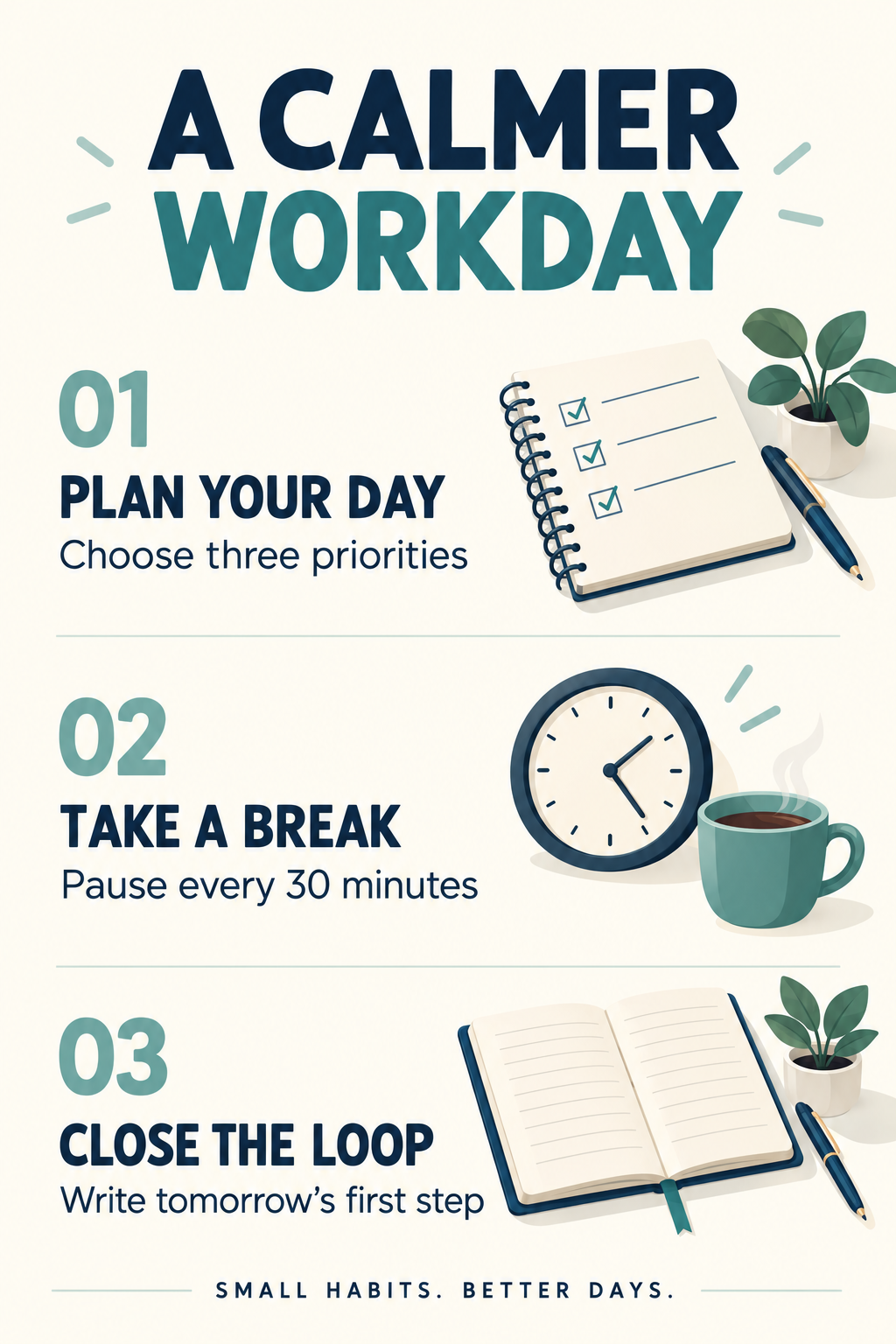
- Pause every 30 minutes
- Replace with
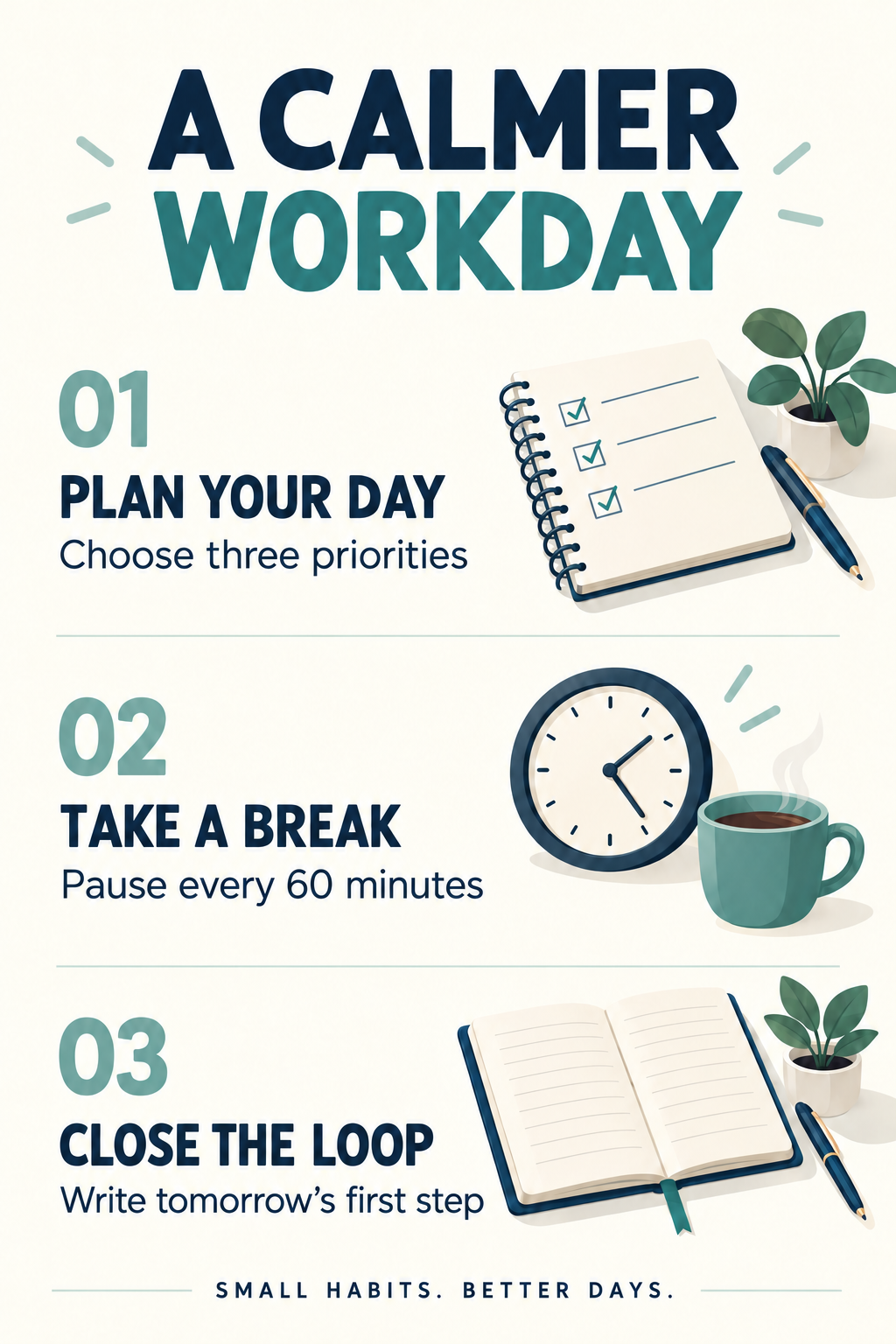
- Pause every 60 minutes
- Font
- Match original
- Suggested format
- PNG for comparing text edges
Prepare one specific change
Download the original infographic and upload it to the editor. Keep the original as your reference. For this exercise, replace Pause every 30 minutes with Pause every 60 minutes in step 02. Deciding the exact wording before you start makes it easier to spot an incomplete edit.
Select the supporting text, not the whole section
Scan for text and choose the line under TAKE A BREAK. If the scan groups the heading and body together, draw a box around the complete Pause every 30 minutes line. Enter Pause every 60 minutes in Replace with and choose Match original. Leave the section number, heading, and illustration outside the selection.
Compare the sentence and the visual hierarchy
Generate a PNG at your chosen resolution. Read the new line character by character, checking that 60 has replaced 30. Zoom out to compare the body-text size, line spacing, and alignment with the other two sections. The sentence should still look like supporting copy rather than a new heading.
Inspect the rest of the list
Check that PLAN YOUR DAY and CLOSE THE LOOP still have their original supporting text, and compare all three illustrations. If you want to change another line, use Edit again from the latest accepted result. Return to the original if an edit damages another section instead of building more changes on top of it.
Choose output settings and estimate credits
A text scan costs 1 credit. Each image edit has the cost below; PNG and JPEG use the same credit amount. If you edit again, count another edit. Use the cost displayed in the editor before you generate.
| Resolution | One edit | Scan + edit |
|---|---|---|
| 1K · Standard | 20 credits | 21 credits |
| 2K · High | 30 credits | 31 credits |
| 4K · Ultra | 70 credits | 71 credits |
For example, one scan followed by two 2K edits uses 61 credits. An additional scan adds another credit. Start from a clean image; choosing more output pixels does not guarantee a closer font match or repair unreadable source lettering.
PNG avoids additional lossy compression. JPEG is useful when file size matters, especially for photographs. Select the format before generating, then open the actual download to confirm its dimensions and readability.
Before you approve the result
Check the target text at full size, then the complete design at its intended viewing size. A readable replacement is only part of a successful edit.
- Step 02 reads Pause every 60 minutes, with every word intact.
- TAKE A BREAK and its section number are unchanged.
- Steps 01 and 03 retain their original instructions.
- Body-text size and alignment remain consistent across the infographic.
- The downloaded image is readable at the size you plan to share.
If the edit needs another attempt
| What you see | What to try |
|---|---|
| The scan selected too much text | Draw a region around the complete supporting sentence. Keep the heading, section number, and nearby illustration outside the box. |
| The new phrase is squeezed or wraps | Use a shorter equivalent or return to the editable source design when the layout needs to expand. Higher resolution adds pixels, not extra room for words. |
| The lettering is close, but not identical | Use Match original and compare letter shapes and spacing. AI approximates typography; exact brand fonts are best changed in the original design file. |
Common questions
Can I replace existing text instead of adding text on top?
Yes. Select the existing text and enter its replacement. The editor asks AI to reconstruct that part of the image. This differs from adding a text overlay, which can leave the original lettering visible underneath.
Is the free sample the same as editing my uploaded image?
The homepage sample demonstrates selection and replacement locally. AI edits of your own uploads require sign-in and credits. The tutorial images here are generated examples, not screenshots of a recorded editor session.
Will a 4K export repair every blurry letter?
No. A higher output resolution provides more pixels, but cannot guarantee an accurate reconstruction of unreadable source text. Start with the clearest original and check the result rather than relying on resolution alone.
Put the guide into practice.
Try the sample without signing up, or upload your image to make your next edit.
Start editing